How to Add a Google Preferred Source Button to Your Website
Want to make it easier for readers to add your business as a Preferred Source on Google and get a visibility boost within Google news and search products? Adding a button to your website gives your visitors a convenient place to do just that.
If you need a refresher on what Preferred Sources are and how they affect your visibility, start with our guide about Google Preferred Sources. Here, we’ll focus exclusively on choosing the right Google preferred source button implementation and placing it where readers will actually use it.
Table of Contents
Before You Add the Preferred Sources Button
First, search for your website in Google’s source preferences tool. Confirm that your site appears before promoting it to readers.
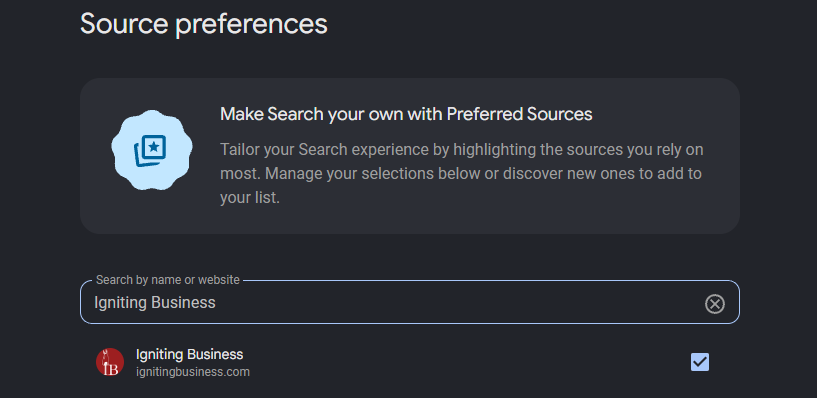
If you don’t appear in the preferred sources search results list, it’s possible that Google does not view your site as regularly producing helpful content. Google states on the bottom of the preferred source pages that “sources that are not updated regularly may be unavailable.”
Options for Add a Preferred Source on Google Button
Once you’ve confirmed your website is available as a preferred source, choose one of the three button implementation methods below. We’ve linked to Google’s instructions so you or your web developer can reference the latest code directly.
1. Standard JavaScript Button: Our Recommendation for Most Websites
Google’s standard JavaScript implementation adds an interactive button that lets readers smoothly select your website as a Preferred Source and return to where they left off. It includes Google styling, automatic language selection, and light or dark themes. Google recommends this method for the reader experience. See Google’s standard JavaScript instructions.
At Igniting Business, this is also our recommended option for most small business websites. It makes the process convenient and helps readers get back to enjoying your content without accidentally clicking away from your website.
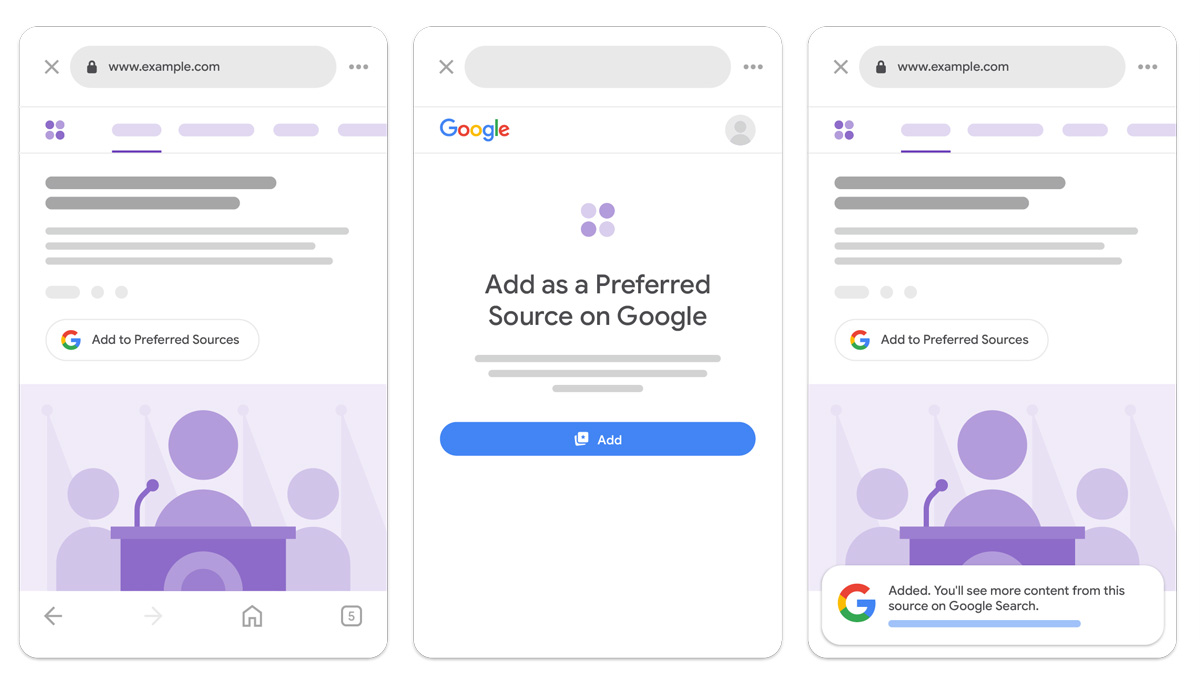 Image courtesy of Google Search Central
Implementation is relatively simple, but “simple” doesn’t necessarily mean you’ll want to tackle it yourself. Depending on your website platform and comfort with editing your site, you may need a web developer’s help.
The main tradeoff of the JavaScript button is limited design flexibility. For most businesses, however, a straightforward button that works well is more valuable than spending extra time customizing its appearance.
Best use case: Your website supports JavaScript, and you want a convenient way for readers to add you with minimal development work.
2. Advanced JavaScript Implementation: For Custom Design or Functionality
The advanced implementation lets your developer connect a custom button or other interface element to Google’s interactive selection process. Readers still use the same underlying flow as the standard button. See Google’s advanced JavaScript instructions.
The advantage is flexibility. You might want the button to match your website’s design more closely or fit into a custom experience.
The downside is additional development work and testing. You’re taking on more complexity to accomplish something the standard button already handles.
We don’t recommend this approach for most small businesses. Unless you have a specific design or functionality requirement, the standard option is usually sufficient. “Advanced” doesn’t automatically mean “better for your business.”
Best use case: You have a clear customization need and a developer available to implement and maintain it.
3. Deeplink: Useful Beyond Your Website
A deeplink is a regular hyperlink that takes readers to your website’s listing in Google’s source preferences tool. You can attach it to text, a button, or an image. See Google’s deeplink instructions.
This was Google’s original (and only) option available before the JavaScript button was released. The deeplink’s biggest advantage is simplicity: if you can add a hyperlink, you can generally use this method.
However, it sends readers away from your content to complete the selection process on Google. Additionally, clicking your deeplink does not automatically add your website; readers still need to select and confirm their preference.
We no longer recommend deeplinks as the primary method for most websites now that the interactive JavaScript option is available.
Deeplinks still have an important role, though. They’re useful when your website doesn’t allow JavaScript (including some limited website builder platforms) and in places where an embedded website button isn’t practical, including:
- Social media posts
- Email newsletters
- Email signatures
Best use case: Use the standard JavaScript button on your website and a deeplink when promoting your Preferred Source listing through other channels like social media, newsletters, and emails.
Where Should You Put Your Preferred Source Button?
Make the invitation easy for your visitors to notice without letting it interrupt the reason someone visited your website.
Good starting points for including the ad preferred source button include:
- At the end of blog posts: Readers have just experienced your content and can decide whether they want more.
- In a blog sidebar: A visible, consistent location can work well, provided you also check where it appears on mobile.
- In a short “Stay Connected” section: Give readers a clear place to find your Preferred Source button and other ways to follow your business.
- Possible Pop-Up Promotions: Be careful with this one, as people don’t always love popups. However, if your website supports tasteful action-triggered popups, you may be able to do an exit intent or scroll percentage based popup promotion to get a user to add you as a preferred source after you’ve solved their problem.
Add a brief explanation near the button, such as: “Enjoy our tips? Add us as a Preferred Source on Google to see more of our articles.”
Avoid obtrusive popups, repeated prompts, or buttons that cover the article’s content. You’re inviting someone to follow your content; making that content harder to read is an awkward opening argument to add you as a preferred source.
After adding the button, test it on desktop and mobile. Check that it’s easy to see, easy to tap, and works as expected.
Give It a Try—and Keep the Tips Coming
Need a website to practice with? We happen to know a good one.
Add Igniting Business as a preferred source using the button below:
Please also consider subscribing to our free monthly newsletter for more practical web design, SEO, and digital marketing tips.